NCA-1510A-LD1
BIOS update for NCA-1510A-LD1 aka scope7-1510
For the NCA-1510A-LD1, two update processes must be performed: a BIOS update and an ME update.
Please note that downloading and installing our BIOS upgrade packages is done at your own risk. An improperly executed update can lead to malfunctions or, in the worst case, cause irreparable damage to your system. Before installation, make sure that the upgrade package matches your device model and hardware configuration exactly. Do not interrupt the update process under any circumstances—especially not by restarting the system, cutting power, or removing storage media. We strongly recommend performing a full data backup prior to the BIOS upgrade. We accept no liability for any potential damage, data loss, or system failures. If you are unsure or have any questions, please contact our technical support team beforehand.
Preparation
Prepare a Bootable USB Stick
You will need a USB stick with at least 1 GB of storage.
Format the stick using the FAT32 file system.
Next, extract the ZIP archive for the NCA-1510A-LD1 provided by Landitec directly onto the USB stick.
Extracting with Windows
- Right-click on the ZIP archive
- Select Extract All from the context menu
- Click Browse to choose your USB stick as the destination
- Start the extraction by clicking Extract
Booting from the USB Stick
- Insert the USB stick into the NCA-1510A-LD1
- Now connect to the NCA-1510A-LD1 (e.g. RJ45, mini-USB)
- Start a serial connection with a terminal program such as Putty or Minicom
Configure your terminal program so that it uses the following settings:
115200, 8N1.
- Power on the NCA-1510A-LD1
- Immediately press DEL to enter the BIOS setup
- In the BIOS, go to the last tab and look for Boot Override
- Select your USB stick from the list to boot from it
The system should now boot from the USB stick.
Please wait until the boot process has fully completed.
Updating / Flash
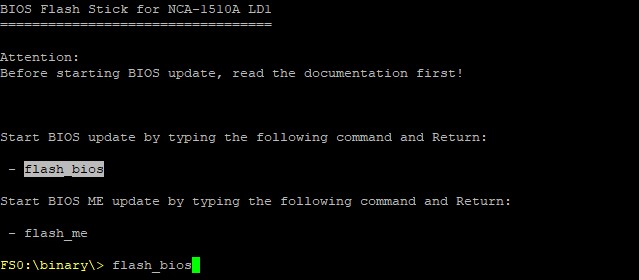
Once the boot process is complete, you should see the screen above.
Step 1: Updating BIOS (flash)
- At the console prompt, type flash_bios and press ENTER
- The flashing process will begin
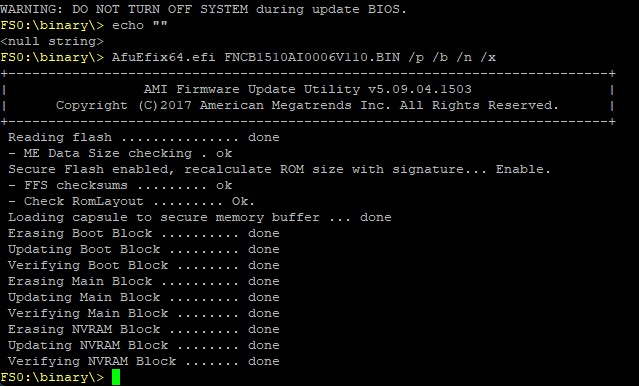
Once the process is finished, the output should look like the screenshot above.
- Power off the device using the power button
- Wait 10 seconds, then power the device back on
- Immediately press DEL to enter the BIOS setup
Step 2: Enable Relaxed Security Configuration
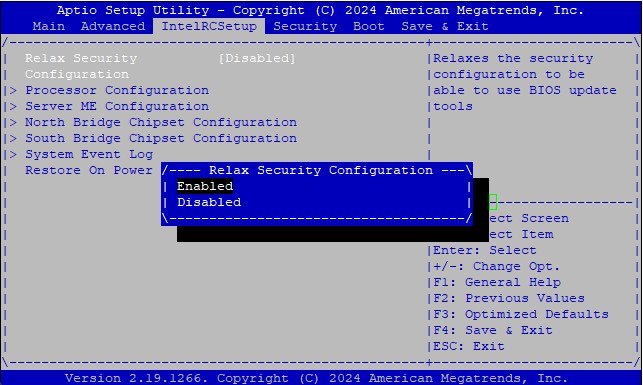
- In the BIOS, navigate to the IntelIRCSetup tab
- Select Relax Security Configuration and press ENTER
- Change the setting to Enabled and confirm with ENTER
Step 3: Save and Reboot
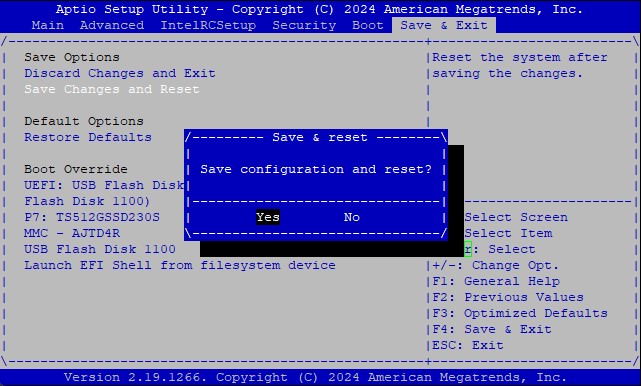
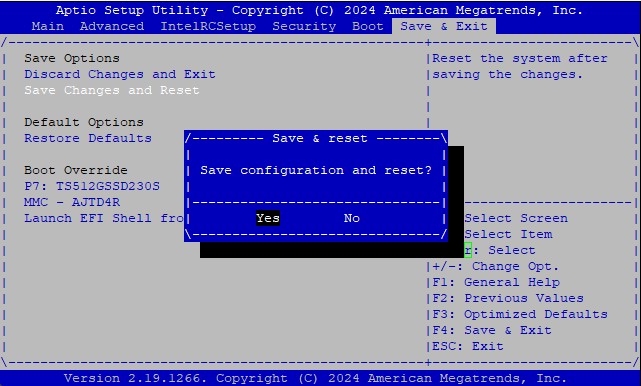
- Navigate to the Save & Exit tab
- Select Save Changes and Reset
- Confirm by selecting Yes and pressing ENTER
Step 4: Updating ME (flash)
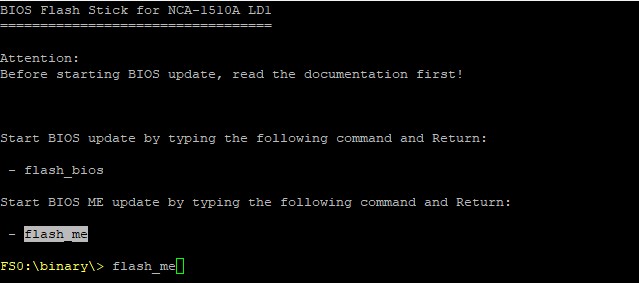
- Enter the BIOS again and go to the last tab
- Under Boot Override, select your USB stick again
- Wait until the system boots from the USB stick
You should now see the update prompt again.
- At the console prompt, type flash_me and press ENTER
- The ME firmware update process will start
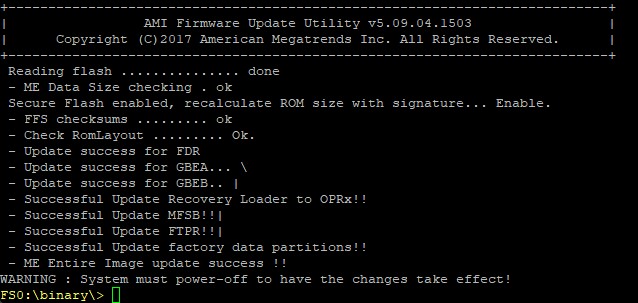
Once complete, the output should resemble the screenshot above.
- Power off the device again and remove the USB stick
- Wait 30 seconds, then power the device back on
- Immediately press DEL to enter the BIOS
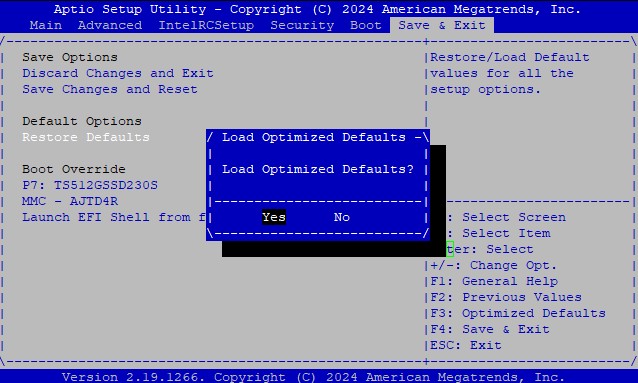
Restore BIOS Defaults
load the defaults in BIOS under Save and Exit.
Save the confgurations and exit.
✅ The BIOS update process for NCA-1510A-LD1 is now complete!