Quick Start Guide LandiKI
Before you begin, it is crucial to read and follow all safety instructions. Ensuring your safety and the proper operation of this equipment is our top priority. Please take a moment to familiarize yourself with the safety guidelines provided. Your adherence to these instructions will help prevent accidents and ensure a smooth and efficient setup.
General Information
LandiKI is a local AI instance specifically designed for customers, providing easy access to powerful AI models. This guide outlines the essential steps to quickly set up and start using your LandiKI system.
The LandiKI software and AI models are installed on the primary SSD drive. An additional 240GB SSD drive is available (currently not mounted) for tasks such as Retrieval-Augmented Generation (RAG), fine-tuning, model storage, and backups.
Getting started
LandiKI offers two network ports with different configurations:
- DHCP Port: Receives an IP automatically from your network
- Static IP Port: Fixed IP address at
172.20.10.1
Connect an RJ45 Ethernet cable to one of the ports depending on your network setup.

Accessing LandiKI
You can access the system either via SSH or through the Web Interface.
SSH Access
Use the following SSH commands to connect:
- For DHCP-assigned IP:
ssh landiki@<dhcp-assigned-ip>
- For static IP:
ssh landiki@172.20.10.1
Password for both ways is landitec.
Web Interface Access
LandiKI’s WebUI is accessible over HTTP at port 8080.
No SSL support currently available. While HTTPS is not strictly required for basic operation, it's highly recommended for security and is necessary for certain features like Voice Calls to function in modern web browsers. More information can be found here: https://docs.openwebui.com/getting-started/advanced-topics/https-encryption/
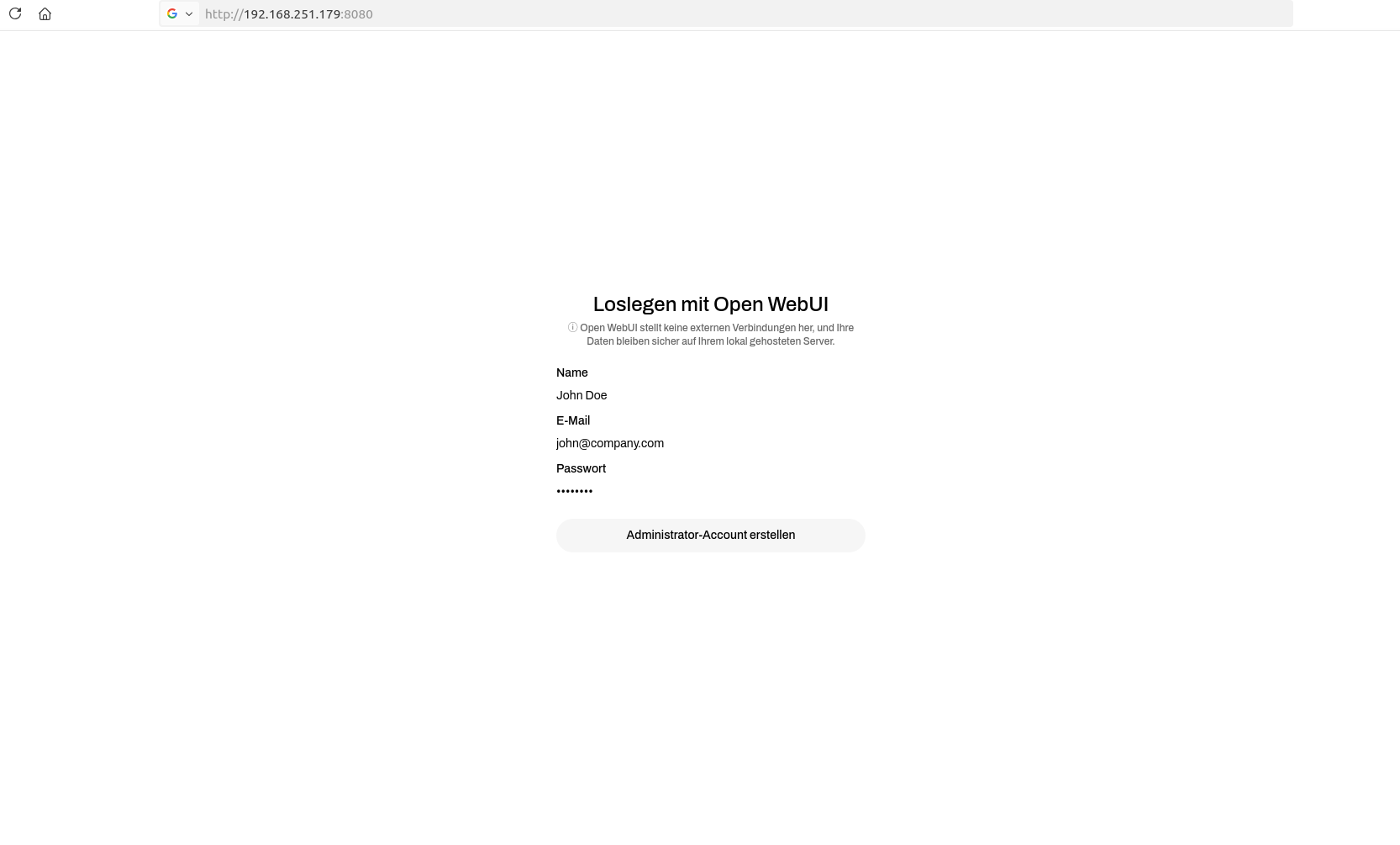
Example: http://192.168.251.179:8080/

Click Get Started to begin setup.
Initial Setup and Login
Administrator Account Creation
Create an administrator account by filling out the displayed form after clicking Get Started.
After Login
Once logged in, you'll have immediate access to LandiKI functionalities.
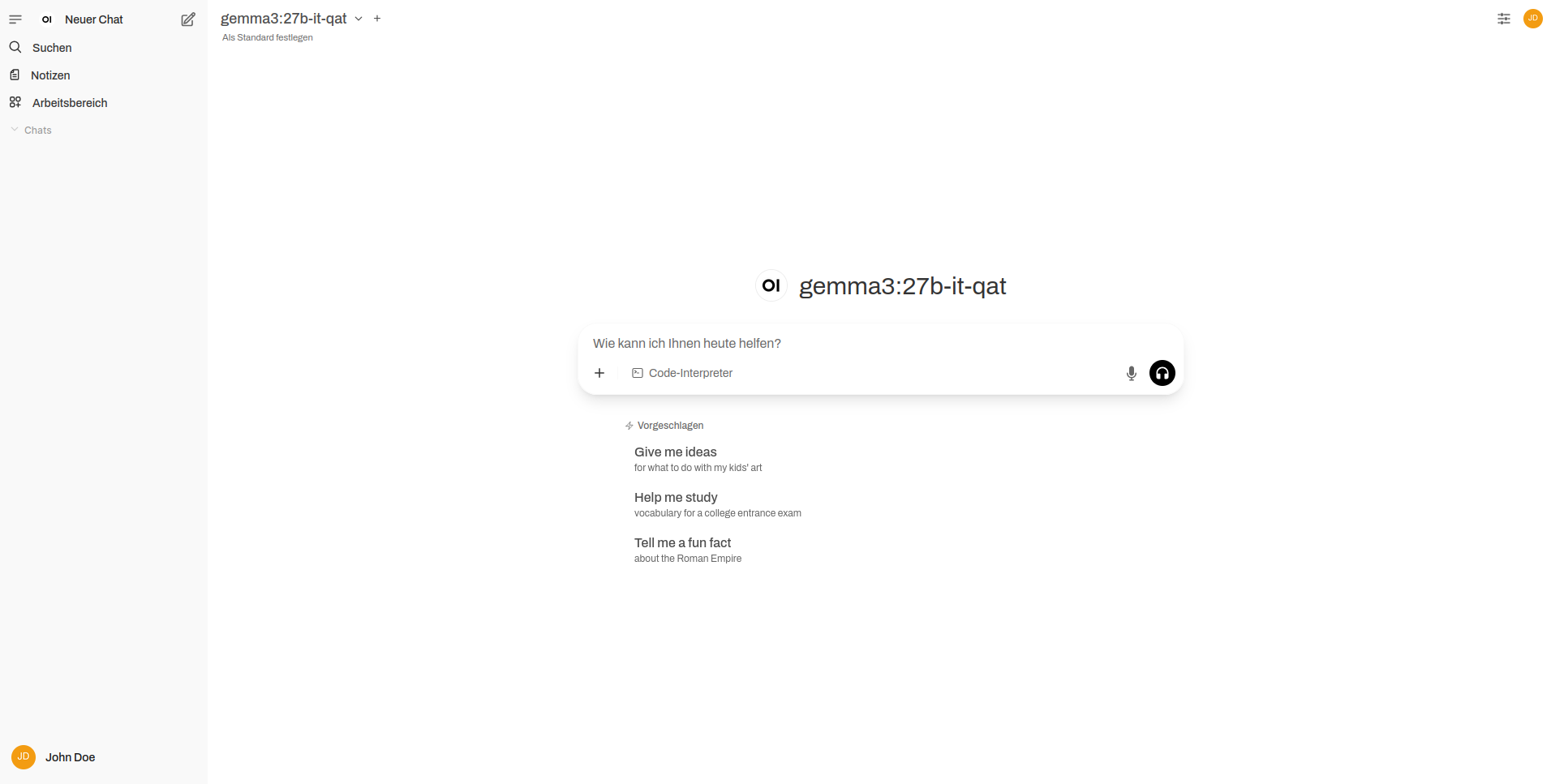
LandiKI is preloaded with default models for immediate use. You can always change or download additional models.
Available AI Models
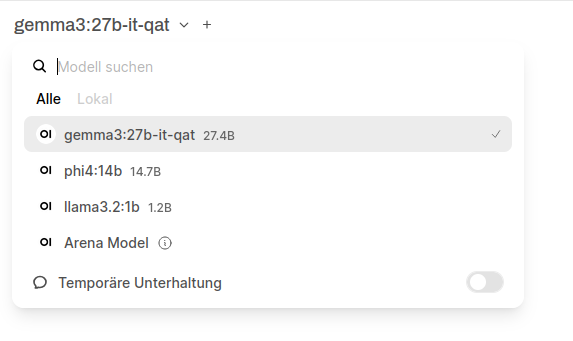
These models are pre-installed and ready to use:
Model Details
gemma3:27-it-qat This is Googles current top model. Gemma 3 introduces multimodality, supporting vision-language input and text outputs. It handles context windows up to 128k tokens, understands over 140 languages, and offers improved math, reasoning, and chat capabilities.
phi4:14b This is Microsofts current top model. Phi-4 is particularly good at math problems.
llama3.2:1b This is a lightweight text-only model that would also fit in edge and mobile devices.
Updating OpenWebUI
To update the OpenWebUI interface without losing existing data, follow these commands:
- Stop and remove the existing container:
docker rm -f open-webui
- Pull the latest OpenWebUI image:
docker pull ghcr.io/open-webui/open-webui:main
- Restart the container:
docker run -d --network=host -v open-webui:/app/backend/data -e OLLAMA_BASE_URL=http://127.0.0.1:11434 --name open-webui --restart always ghcr.io/open-webui/open-webui:main